~ $ open Chasen.app
Your servers, in the menu bar.
A whisk sits at the top of your screen. It is dim while every app is up, it moves while a deploy runs, and it turns red when an app is down. One click shows every server. One more opens the dashboard.
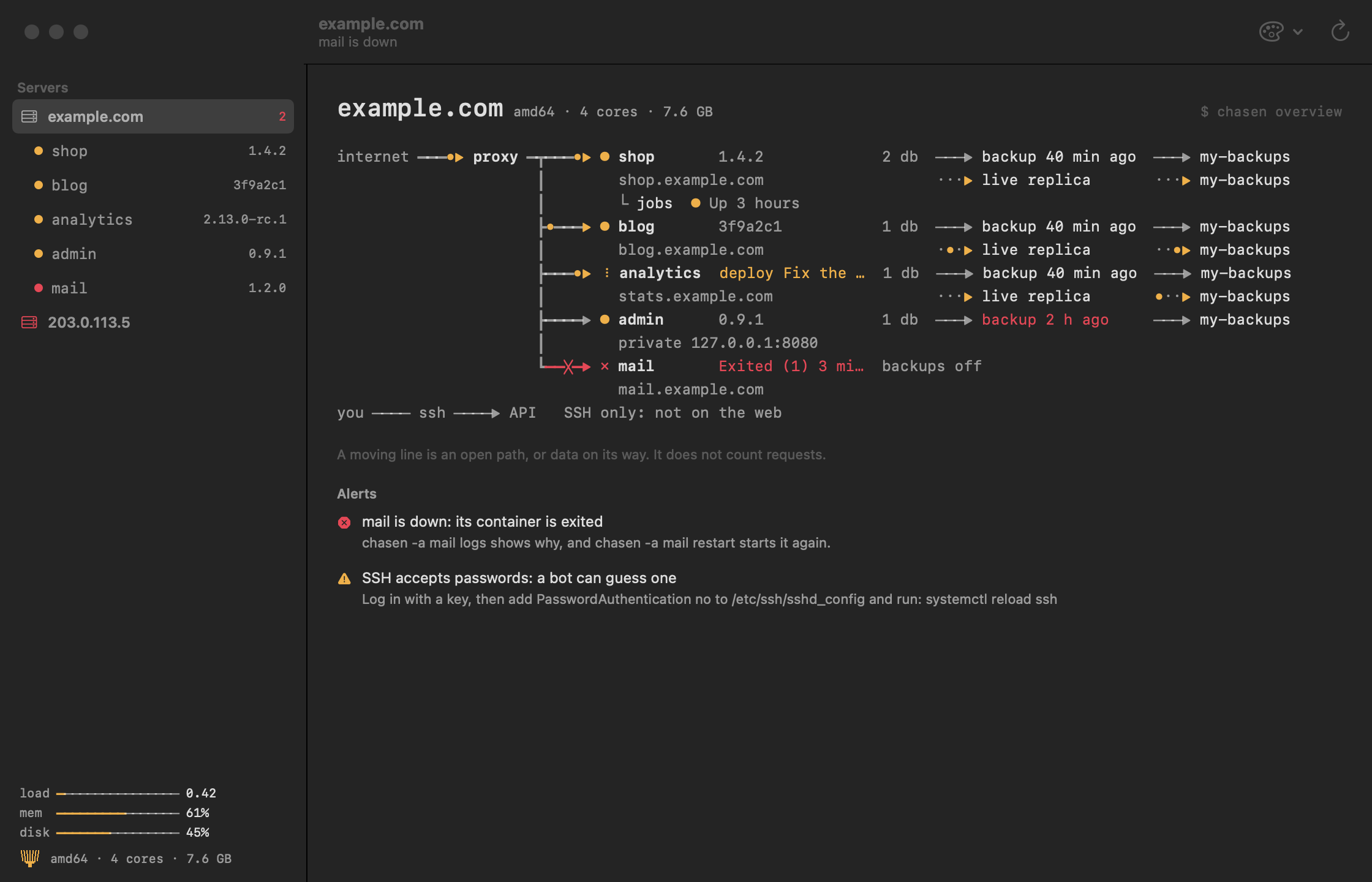
[01] the dashboard
The screen of the CLI, as a window of your Mac.
Each server is a map: the traffic from the internet through the proxy to each app, and where the data of each app goes. A moving line is an open path. Each app has its overview, history, backups, domains, and live logs.
- It only reads. Restart, rollback, and restore stay in the CLI, so a stray click changes nothing on a server.
- One login. The app and the CLI share their logins. A server that you added with
chasenis already there. - No terminal. The CLI is inside the app, and a new server logs in from the panel.
- Three themes. Chasen, Monochrome, and System. The app and the CLI share the choice.
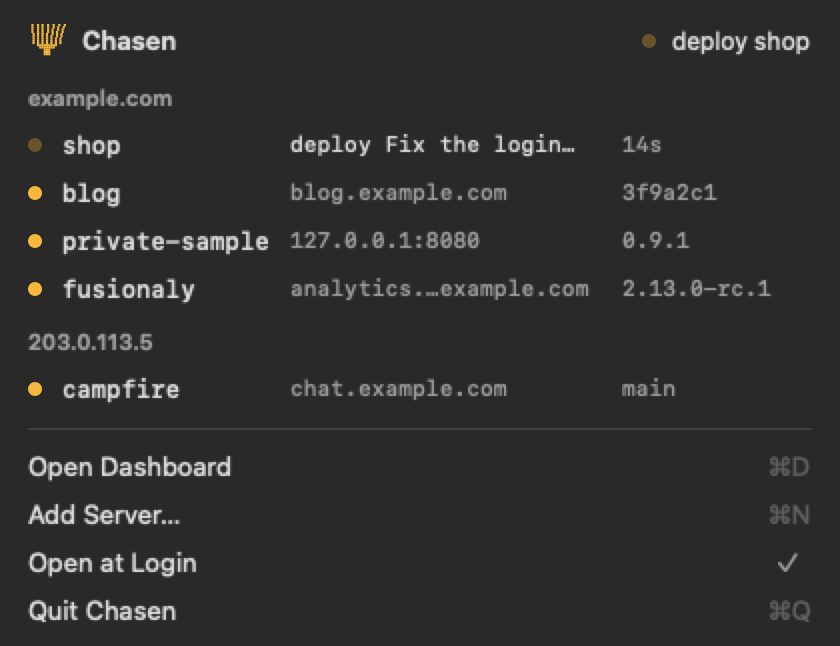
[02] the panel
Every server, one click away.
The panel shows each server, its apps, and its alerts. It sees every deploy, also one that your GitHub Actions started. When a deploy ends, a notification says that the app is live, with the subject of its commit.
[03] install
Apple has not notarized it yet.
So macOS asks you once before it opens the app. The code is open source, and each release has its checksums.
- 1openOpen Chasen.dmg, and drag Chasen to Applications.
- 2startOpen Chasen. macOS stops it, this one time.
- 3allowOpen System Settings > Privacy & Security, and click Open Anyway next to Chasen.
No server yet? Start with the CLI.